· Alec Reimel · 3 min read
Using a VR Headset for Development Work — Practical Tradeoffs
What to evaluate before treating a VR headset as a development workspace: text readability, keyboard access, desktop integration, comfort, and the tasks that benefit from it.
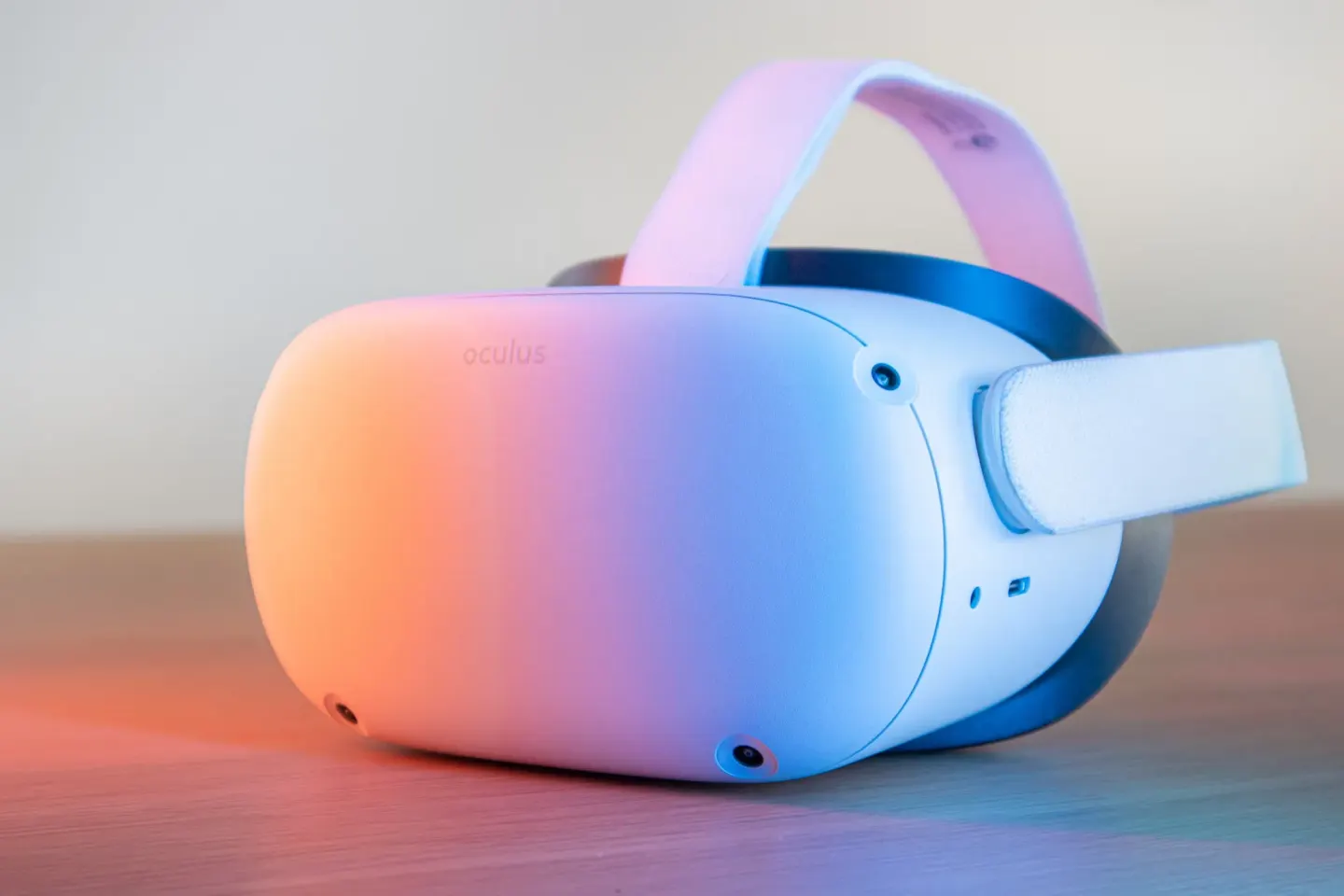
A virtual workspace is an interesting interface idea: move windows into a larger perceived space and change the environment around a focused task. For development work, the value depends on practical details such as readable code, keyboard access, and the connection to the computer running the tools.
This is a checklist for evaluating that setup, rather than a headset benchmark or a claim that virtual monitors improve productivity for everyone.
Distinguish the display from the development computer
A headset showing a desktop does not necessarily replace the machine running an editor, terminal, browser, and build tools. Start by identifying where the development environment runs and how its display and input reach the headset.
A clear setup diagram would show the development computer, the connection, the headset, and input devices. That makes dependencies easier to reason about than treating “a VR office” as one feature.
Test text before counting screens
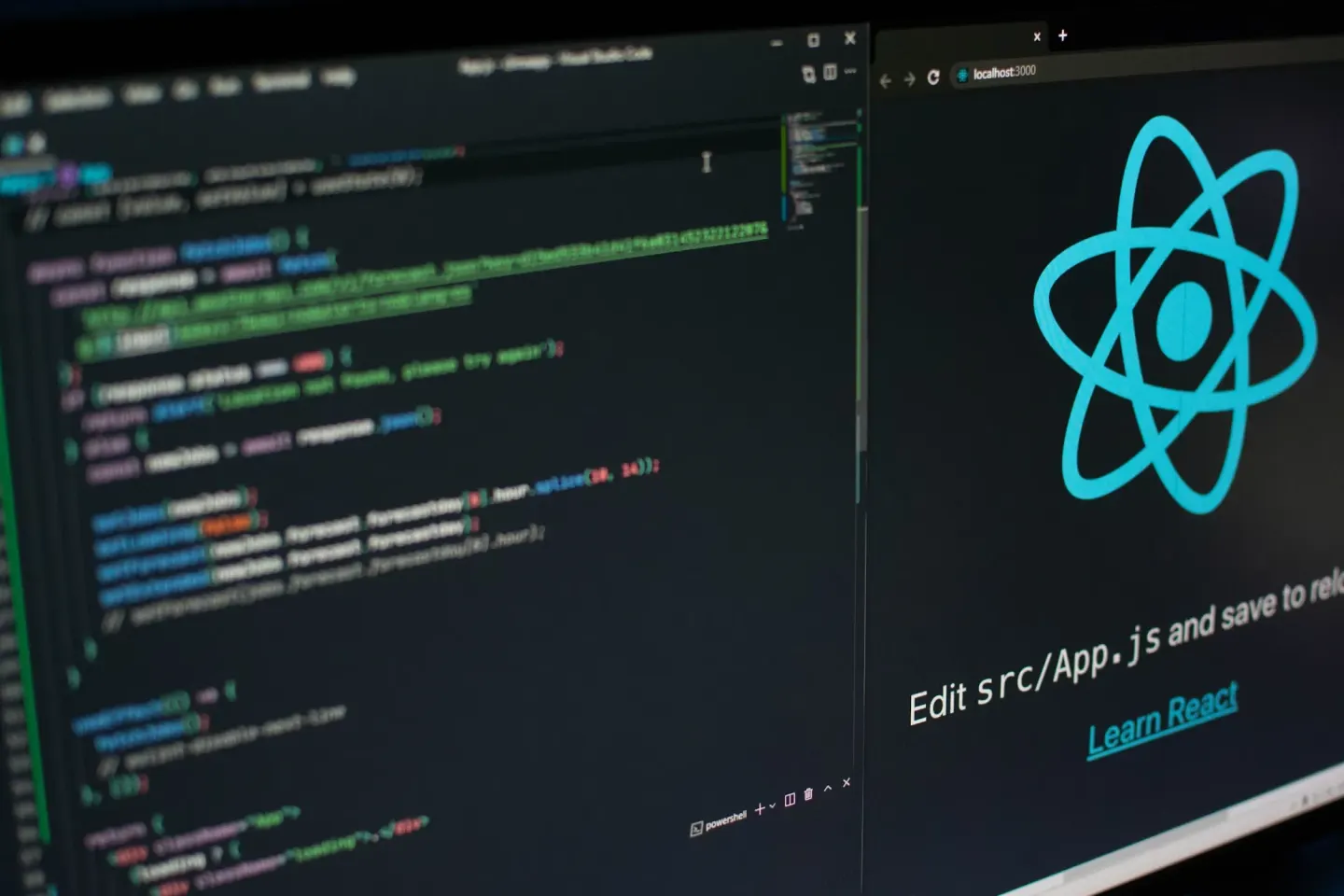
A large virtual display is only useful if code remains comfortable to read. Evaluate your actual editor and browser at a normal working size. Check small punctuation, error messages, documentation, and terminal output.
Adding more windows can also create more navigation. Consider whether a second view helps with a specific task, such as keeping a preview next to source code, before building an elaborate workspace.
Check the whole input loop
Development involves frequent transitions between typing, pointing, reading, and checking results. A useful evaluation includes:
- Finding and using a physical keyboard without disrupting the task.
- Moving between the editor, browser, and terminal.
- Reading browser developer tools and debugging output.
- Handling passwords and private information in the chosen desktop setup.
- Recovering when the desktop connection is interrupted.
A demonstration that only shows floating windows misses much of that workflow.
Evaluate comfort and collaboration
Try a representative task and pay attention to comfort, posture, battery limitations, and the ability to notice your surroundings. A short experiment can establish whether a setup is worth evaluating further; it does not establish that it will be comfortable for a full workday.
Remote work also includes calls, screen sharing, and communication with teammates. Check those tasks separately from the solo coding experience.
Treat it as an interface choice
VR workspaces are one way to arrange tools around a task. A conventional monitor may suit some work, while a virtual environment may be interesting for other tasks or spaces. The useful comparison is whether the interface supports the work you need to do.
Creative technology is one of my interests alongside frontend development and analytics tools. Read about my work, explore my projects, or contact me about a developer role.
- VR
- productivity
- technology
- remote-work